Everybody has no doubt seen those pretty funny Windows 7 commercials on TV. You know the ones; where the regular-everyday Joe says that he had an idea for Windows 7. The camera flashes to a way better looking 'stand in' actor and the show off a cool feature.
Well, I get asked quite a bit how to use those features. So I figured I'd list the keyboard shortcuts or methods to use these features. Here we go!
*Note: Aero Effects are available for Windows 7 Home Premium, Business, and Ultimate.
- The first feature is live taskbar thumbnails. Yep, simply minimize a running program to the taskbar. Then mouse down to that program on the taskbar and hover your mouse over it. A nice little thumbnail will popup revealing what that running program has going on inside it. Pretty cool!
- Secondly, minimize other windows. Simply click the window you want to keep, while holding the mouse button; give the mouse a little wiggle. All other windows will minimize.
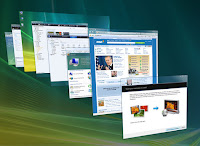
- The next cool feature (and my personal favorite) is Windows Flip 3D. Bascially, it's a replacement for the Alt+Tab shortcut. Pressing Alt+Tab on the keyboard brings up a little windows with every running application's icon sitting side by side. It allows you to toggle through the running applications using only the keyboard. Well Windows Flip 3D does pretty much the same thing, but in a cool 3D view. To do this simply press: Windows key + Tab. And you'll be able to show off some nice eye candy.
- Finally, the Snap feature. Using Snap will let you line up two open windows side by side. Simply click on the title bar of one program and slide to the left side of the screen. It will snap into position taking up half the screen. Do the same with the other window, but take it to the left. There you go!
Now you're an Aero geek like me. Happy computing!


 Techie on Facebook
 Techie on Google+
