Showing posts with label nexus 7. Show all posts

Friday, March 1, 2013

App of The Week: Shadowgun Deadzone

0 comments
Shadowgun: Deadzone for iOS & Android
Our App of the Week for the week of March 1nd, 2013 is: Shadowgun: Deadzone.  As always, we always try to highlight apps that are cheap and/or free in most cases.  There are exceptions where an app is just so awesome, that paying more than $4 or $5 dollars shouldn't be a problem.  But keeping true to our idea that most of us are on a budget (and or just cheapskates like me), ShadowGun: Deadzone is a FREE app.  And unlike our usual App of Week pick, this game is cross platform on both iOS device and Android devices.  So let's jump into what really makes this game standout.

What is it?

Shadowgun: Deadzone is an online multiplayer, third person shooter title.  It follows the release of the original Shadowgun game for iOS and Android created by MadFinger Games.  This game is absolutely gorgeous.

The Story

As mentioned above, Shadowgun: Deadzone is an online multiplayer game that throws the player into either a deathmatch style game or a capture point style game.  There is very little by way of story for this app.  It ideally picks up after the events of the original Shadowgun title.  If you missed the original, a "Shadowgun" is basically a professional bounty hunter.  In the original game, you played as John Slade and your mission was to stop a mad scientist from making a mutated army.  So in Deadzone, your character is either a mutant soldier or one of several Shadowgun skins.

Gameplay

The game plays pretty much just like the original Shadowgun title.  It is basically a covered based shooter much like the Gears of War franchise on the Xbox 360.  Meaning, you run and gun and use objects that are scattered around the map to hide behind when you need to get out of the line of fire.  When hiding behind a barrier or your back is pressed against a corner wall, the camera shifts a little providing a view of the action in front of you.  You can then fire from behind cover, which is really handy in a heavy firefight.
Shadowgun: Deadzone

The controls are fairly straight forward as well.  On the left side of the screen is a virtual joystick which controls movement.  You aim by sliding your right thumb around the screen.  In the bottom right we have several icons that include aiming/firing, reloading, and sprinting.  In the upper right corner of the screen we have your weapon selection icon, your sprinting meter, and a couple empty inventory spots for certain perks or power ups that you unlock as you play.  These perks can include the ability to drop ammo or health recharge packs, use motion radars, and grenades to name just a few.  Unlike a lot of games that utilize a touch based, onscreen button layout; this one works extremely well with a very low learning curve.

Other Features

What would a game that only offers online multiplayer be without a system for leveling your character?  And Shadowgun: Deadzone offers exactly that.  As you play matches you gain experience points and cash.  Both of these add up over time.  Your cash is used to upgrade weapons and unlock new power up.  Meanwhile, you're experience points builds up your character's level as you play as well.  Here is the important thing, a higher level doesn't necessarily mean a "stronger" character.  It does mean, that someone with a higher level than you, has access to different weapons which in turn may be stronger than those who run lower level characters.  But this is a fair trade off.  As I have been in matches with people who are much higher levels, and still been able to more than hold my own against them.
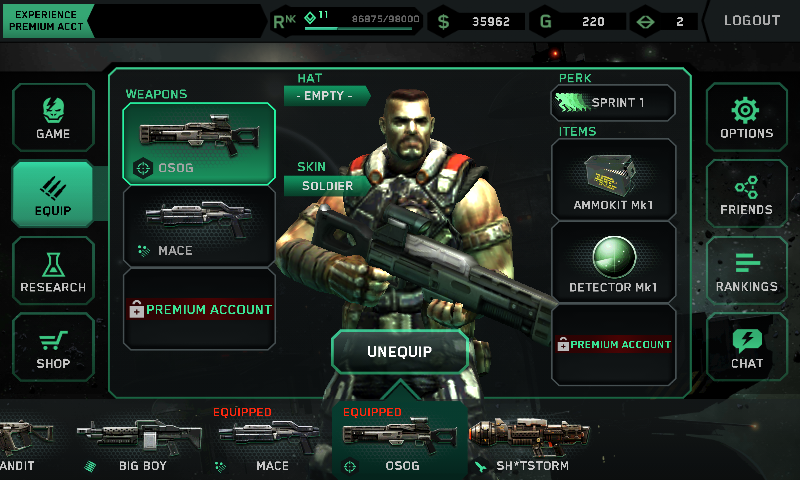
Shadowgun: Deadzone
Character Loadout Screen

There is also a "Casino" feature built into the games main menu.  Each day your account will be given a token (or 2 or 3 depending) and you can use these tokens to take a spin on the Slot Machine.  The reward for playing the Slot Machine is in game gold.  This gold can be used to buy cosmetic items such as skins, hats, etc. for your character.  As the tokens are given to your account, you do not have to pay "real-world" money for these.

There is also a buddy list, you can log in with your Facebook account, and you can chat (and voicechat if you have a premium account).

Game Modes

Shadowgun: Deadzone

Currently there are only two game modes: Deathmatch and Zone Control.  Deathmatch is your traditional free-for-all game mode.  Where every player loads out into the map and spends the matches time limit trying to frag each other.  He who has the highest killscore wins the match.  Meanwhile, Zone Control is a little more tactical.  Each map is contains a series of "Control Points" which also acts as spawn points.  Two teams (red and blue) each fight for the duration of the match to gain control of more points than the other team.  Eventually this leads to some pretty epic battles over points in the middle of a map.  I spend a lot of time playing Zone Control as the strategy aspect of this game mode is a lot of fun.

Premium Features?

So at this point you may be saying, "Wait a minute? A game with these features, and it's free?".  That's right, it is free to download and free to play.  There are a couple ad screens you will see while playing, but the ads are for Shadowgun: Deadzone itself.  Players have the option to upgrade to a "Premium Account" if they choose.

Premium accounts get the following:
-50% more Money and Gold for Playing Matches
-Increased Experience Points for Matches Played
-Access to Premium Servers
-Voice Chat

Premium features can be purchased using your in-game gold or you can drop some "real-world" money for it as a microtransaction.  Premium accounts can be:
-1 day 
-3 days ($00.99)
-1 week ($00.99 USD)
-1 month ($2.99 USD)
-3 months ($9.99 USD)

For example, I ran the month of January as a premium account.  And the immediate advantage is being able to change between more than just the original 2 character skins.  For me the cost is very little and if it counts towards helping the developers build updates for the game; then I am happy to support it.  The Premium cost is a one time charge and no recurring.  So when it runs out, you are dropped back down to a "Free Play" account status.  Which means you receive less money and experience points.


Overall

This game should be considered a AAA title.  It offers gameplay that I have yet to find in any other mobile game.  And it feels like a big-console experience that you can hold in your hand.  With great controls and graphics and an online experience like no other on a mobile device.  I highly recommend this game.  With a limited selection of maps and only two game modes, I would love to see this game grow to offer more as time goes on.  But even with those limitations, I still give this game 5 Stars.

To play it, you will need a device that has at least 512MB of RAM.  For iOS device users this includes: iPhone 4 (and newer), iPod Touch 5th Generation, and iPad 2 (and newer).  For Android users a modern device with at least 512MB of RAM and running Android Honeycomb and newer.
I have been playing this on both my Samsung Galaxy S2 and my Google Nexus 7 and it plays smooth and fluidly on both devices.

Check it out:

Tuesday, February 26, 2013

Twitter's Token Limits vs Falcon Pro

0 comments
Falcon Pro
I was considering featuring the Falcon Pro Twitter app for Android devices as one of our weekly app picks.  However, I am kind of glad that I didn't.  But not for the reason you may first think of. The app is an outstanding Twitter client for Android devices.  It is very fluid and offers a smooth user experience when using Twitter.  In my opinion, it is just much sleeker and useful than most other Twitter clients I have used (including the official Twitter client for Android).


So what is the problem?

You may be thinking that the developer might have nerfed some features or did some funky new thing with an update.  But none of that is true either.  The issue appears to be on Twitter's end.  How can this be?  Are they trying to choke out "3rd party" developers?  Don't they want people to use their service?

How: Twitter's API grants access to their service via "access tokens".  If you have ever used a Facebook or Twitter app that allows you to login using your account for a social media service instead of just setting up yet another account; then you have used access tokens too.  This is a popular way to sign into sites and services using mobile devices as well.  So, an access token is delivered to your app or device when you access your account for a particular service using one of these "other" client type apps.  Simple enough.  On the end user side, this makes it easy to use other services and clients without managing multiple logins.  There are some other challenges on the service side, such as token limitations.

For example, Twitter's access token limitation is 100k for a 3rd party type app or service.  Once you hit the 100,000 token limit.  That is it, new user's are no longer able to authenticate their app on Twitter.  Meaning if you buy a Twitter client app on the Google Play Store, and it can't authenticate on Twitter, you have useless app (at least from the purchaser's point of view).

This is exactly what happened to Joaquim Verges who is the developer of the acclaimed Falcon Pro app.  His app hit the 100k wall in less than 3 months, and that is "all she wrote".  Mr. Verges has since started a petition to try and get the community feedback to help encourage Twitter to raise this limit, but per the Falcon Pro Twitter account (@falcon_android) he has already received a correspondence from Twitter stating:

Falcon Pro Twitter Reply


So let me get this straight, does this mean that Twitter won't raise the token limit at all?  Or if Falcon Pro offered some feature that Twitter's "official" client didn't have, it would then raise the limit?  The later is how I read it.  I know that Twitter controls what, who, how, and when can utilize their service.  I completely understand that.

But at the same time is it right of Twitter to slam a door in the face of a successful app developer?

It doesn't take a person long to realize this app has a pretty good user base by looking at the apps reviews on Google Play Store.

So what happens now?

Well, for Mr. Verges he has done only what one could sensibly do.  He has reached out to the community for participation in a petition and has contacted Twitter with his request.  At this point, Twitter has shot down his request; and I honestly don't know how much a petition would really help at this point.  In the meantime, Mr. Verges has placed a disclaimer on the app's Google Play Store page informing user's and potential buyers not to purchase the app due to the token limit from Twitter. He has also marked up the app price to $132.13 USD.  Not sure how he came to pick this price, but that's how much it costs now in attempt to discourage future user's from purchasing the app thus restricting it's growing user base without being forced to just shut down.

And that is not all.  The app's store page also requests that any user who is no longer using the app to please release the token from their app.  That will free up a token so other people can use the app would essentially drop the count below 100,000 tokens (at least until it is used by someone else).

My advice?

I am not an app developer (or much of a programmer either for that matter); but if I were Mr. Verges my next step would be to prove to Twitter how awesome my app was.  I would drop back and punt for lack of better puns.  Go through the official Twitter app and try to work up a feature or two that the official Twitter app doesn't offer.  And build on it.  Then see what Twitter's excuse is for not raising the cap.  My guess would be they will probably still shoot the request down, and probably add a couple new aforementioned features as well.

To Twitter...

As a company offering a social networking service to the internet community, I understand you're limitations concerning 3rd party developers, apps, and even services.  However, for Falcon Pro to hit this benchmark means that there is definitely something great about this app. Why not make Mr. Verges an offer to help with the current development of the official Twitter app?  Instead of choking out these smaller developers who make awesome apps, why not bring them on board and help build what you currently have going?  Just makes sense to me.

What happens now?

Well, Mr. Verges has tweeted out that he will continue to update the app and support it for current user's as he uses the client himself, and refuses to use an app that is outdated.  For which, I cannot blame him.  And personally, I will continue to use the app as well.  And in the meantime will continue to follow the progress on this and will report back if anything changes.

Ways to get involved:

It may seem somewhat ironic, but why not show Mr. Verges some support over on the Falcon Pro Twitter Account.

Go sign the petition: http://www.ipetitions.com/petition/extend-falcon-pro

After all, Mr. Verges isn't the first and probably won't be the last that this type of thing happens to. Unfortunately, if we as the community don't get involved then this will continue to happen to other apps even across other services.

Saturday, February 23, 2013

App of The Week: Temple Run 2 for Android

0 comments
Temple Run 2
As the title mentions, our App of The Week for the Week of February 23rd, 2013 is Temple Run 2.  Let's be honest, if you have a Android or an iPhone, then you have probably at least heard of or even seen the original Temple Run.  The original Temple Run became somewhat of a staple of mobile gaming.  Along with the likes of Angry Birds, Jetpack Joyride, and numerous others.  Either way, the original was an awesome game (albeit, rather frustrating at times; but still awesome).

If you happened to have played the original Temple Run then you pretty much know the ropes of the gameplay.  Basic controls involve swiping the screen in order to make your runner avoid obstacles or make turns all while you are running from the likes of a crazed monkey.  As the game opens, you see a nice 3D fly in of the ornate opening of a cave where an idol hovers in the cave's opening.  You tap the screen to play, and that is when we are introduced to our runner.  Who comes running out of the cave's opening and picks up the idol and starts running.  You catch a shot of the giant monkey that is pursuing your runner.  From there the game's camera positions itself behind your runner and you start out on your high speed adventure.

What's new in Temple Run 2?


Temple Run 2 brings several new elements to the game.  All of which makes the game much more involved and in my opinion, brings a welcomed new environment to the Temple Run series.  The environments from the original game were somewhat dark and gloomy looking; which, don't get me wrong served, to set the mood of the game.  But still the newer, brighter environments just look awesome.

The environments aren't the only improvements that Imangi Studios brought to the table though.  Where the original game succeeded in guiding players through a running, jumping, and sliding crazed run while collecting coins and power-ups; the sequel also throws in zip-lines, mine cart rides, and a much larger monkey.

I have been playing the game on my Nexus 7 tablet and my Samsung Galaxy S2 phone.  And it runs so smooth it's almost ridiculous.  I have experienced virtually no lag while running this game on either of my devices.

What is the point of the game?


Run fast, and run far.  All the while, collecting coins and various power-ups that grant your runner abilites like being invincible, attracting all of the nearby coins as you run past them, or a green bubble of protection.  And at the end of the run, try to beat your high score.  There are also achievements built into the game that change as you level up

Is it worth the download?


Most certainly.  And the price is perfect: FREE.  That's right.  It doesn't cost you a dime to pick up this awesome game.  You can spend your real world cash for jewels in-game.  But spending real world money doesn't help you progress through the game.  As each level starts fresh, and each run is different.  So forget about trying to memorize the pattern as you run through the level.  But overall, this game is lush and beautiful, and is a lot of stylized fun.

Sure, the game can be downright frustrating at times.  But if there has ever been a game that makes it fun to be frustrated; then this is it.  So in short, if you are looking for a fun (and free) game to pick up then this is the app for you.


Rating: 


Visit the Google Play Store: Temple Run 2


Tuesday, February 12, 2013

OTG Cable for Nexus 7 Makes Moving Files Easy

0 comments
As mentioned in a previous post, there is a USB cable you can purchase for your Nexus 7 that will allow you to read from USB Flash Drives (and write to them if you are rooted), use game controllers, etc.  But keep in mind that this cable is not a standard USB cable.  It is called an "On-The-Go Cable" or "OTG Cable" for short.  They are fairly cheap to buy, and in my opinion are well worth the investment for any Nexus 7 owner.  Does it work?  Do you have to be rooted to use it?  Why even worry about it?  The answers (respectively): Yes, No, and It's Awesome. See below.


Does it work?


In short, yes the OTG cable works marvelously.  Seeing as how it is just a cable, there aren't many ways it wouldn't work.  It fits the small connection on the bottom of the Nexus 7 where you plug it up to charge.  The opposite end of the OTG Cable, is a female USB connector.  This allows you to hook up pretty much any USB Flash Drive or game controller to it.  This makes it possible to watch movies or play music or even just access files directly from a USB Flash drive without the need of transferring these files directly to the Nexus 7 using either a PC or services like Box.

If you are using your Nexus 7 as it is straight out of the box (i.e.: not rooted) then you will need an app from the Google Play store to be able to read the USB Flash Drives.  And without Root access, that's about all you can do.  There have been some reports of certain apps allowing play with a PS3 gamepad without root, but not every app supports it.  So if you aren't rooted and just want to be able to access other files using flash drives:

-Visit the Google Play Store and download the Nexus Media Importer by Homesoft ($2.99 USD)
-Hook up the OTG Cable and a flash drive.
-The Nexus Media Importer app should launch automatically.
-Select your files and have fun!
*Just note that without root access you can only read from USB Flash drives, you can't write back to them.


Do you have to be rooted to use it?


No you don't.  As mentioned above, you can use it without root access.  However, you're somewhat limited to what you can do with the OTG Cable unless you do have root access.  With root access you can read and write to and from USB Flash Drives.  You can also hook up a PS3, Xbox 360, or even Wiimote to your device for gaming.  Using these devices does typically require an extra app to make it easier to setup (for PS3 controllers use Sixaxis).

And for reading/writing files I use the Stickmount (FREE) app and ES File Explorer (FREE) app to access and transfer files as needed.

Why Even Worry About It?


So why even worry about it.  In short, if you have no plans to root your device or you are completely happy with your Nexus 7 as it is out of the box, you may not even care about using an OTG Cable.  But if you're like me and you like to read books/comic books digitally, or watch movies and videos offline, or even play games with a gamepad; then the OTG Cable is a great workaround.  The Nexus 7 is a slick device, no doubt about it.  But one of the complaints have been the lack of an SD Card slot (or even a full sized USB Host port).  Pretty much, whether you bought the 16 or 32GB capacity versions, that's all the space you get.  With an OTG Cable you not only get the internal storage of your device, along with as many USB Flash Drives you could possibly want.  This really opens up your devices storage options especially if you get tired of using your PC to transfer files to and from your device.

Get Your's!


I use the IVSO Nexus 7 Tablet Micro USB Host OTG Cable from Amazon which cost me after shipping: $4.97 (USD) which is pictured above.

Wednesday, January 30, 2013

Nexus 7 Rooted via the Nexus 7 Toolkit

0 comments
Nexus 7
Last night I did something brave.  Something I swore I wouldn't do for a while after I purchased my Nexus 7.  Apparently, I lied to myself.  As I a little better than a month out of my ownership of my Nexus 7, and today it is rooted.  This isn't a definitive walkthrough.  But it will hit the high spots.  And we can do it in about 4 steps that make the rooting process so easy it's almost ridiculous.  Be warned, the rooting process does perform a factory reset during the process which means all of your user data and apps will be erased from the device.  Please backup any information or data you may need before starting the rooting process.  Read below.


Step 1: Drivers

First thing first, you need the ADB drivers for your Nexus 7.  This can be accomplished one of a couple of ways.  Way #1: download the Nexus 7 Toolkit and let it install the correct drivers for you.  I attempted this, and it didn't work for me.  I am using Windows 8, and I had read there were some funny issues about Nexus 7 driver installation under Windows 8.  So I had to go to Way #2.

Way #2 is manually downloading the drivers from the ASUS site (click here).  This will download the USB Driver Package to your PC.  Simply unzip this file to a folder you can easily find.  Then open Windows Explorer, right click Computer and click on Properties.  Look for the link in the properties box that says "Device Manager".  Look for an entry that had a yellow caution sign beside it that reads "Nexus 7".

Right Click the "unknown" Nexus 7 device and select to Update the driver.  Follow the wizard and point it to the USB Driver that you downloaded and unzipped.  This should fix the driver issue.

Step 2: USB Debugging has to be Enabled

On the Nexus 7 the "Developer Options" menu has been hidden.  To access is, open the "Settings" app on your Nexus 7, tap on "About Tablet".  Find "Build Number" and tap 7 times.  You will see a prompt counting down how many taps until you become a "developer".  This unlocks the "Developer Options Menu".  Now tap your back button to return to the "Settings" menu and then tap into the "Developer Options" menu.  Locate "USB Debugging" and enable it.

Step 3: Download and Install the Nexus 7 Toolkit

This is where the magic is going to happen but you have to be running this from a Windows PC with the drivers mentioned above (unless you let the toolkit install drivers for you).  Visit XDA Developer's Nexus 7 section and download the Nexus 7 Toolkit.  There is a lot of good information on this page, and if you have any desire to root and load custom ROMs on your device then please frequent XDA.  XDA is a great community for this kind of thing.  Anyways, click here to visit the thread about the Nexus 7 Toolkit and download it.  Once you have downloaded it, install it.  It will place a shortcut on your desktop for future use.

Step 4: Hook it all up!

Hook your Nexus 7 up to a USB Cable and your PC.  Launch the newly installed Nexus 7 Toolkit.  And you'll be greeted with a window that has a black background and green text asking if you want to check for an update to the toolkit (select No).  Then select your build of Android (if you aren't sure go back into your Nexus 7 settings and click on "About Tablet" it will tell you Android 4.2 or 4.2.1 or other).  Back in the ToolKit enter the number option that matches your version of Android.  For example, mine was 4 for Android 4.2.1.

If the Toolkit see's your tablet, your tablet's serial number will be just bove the main menu.  If you see it there, you're in good shape (see the pic below).  I selected #8 from the menu for "1-CLICK for ALL...".  Essentially, it will go through an automated process of unlocking the bootloader, rooting, renaming the recovery, installing custom recovery and busybox.  The whole process takes less than 10 minutes to finish.  It is prompted.  So just follow the instructions as the program prompts you.  The Toolkit will handle all rebooting of the Nexus 7 and installation of all software as needed during the process.  So basically sit back, answer a few prompts and let it ride until it is done.  Once the process is finished your Nexus 7 will reboot and the program will prompt that the rooting was successful.

If you are curious that it infact worked, download one of the many Root Checker apps from the Google Play Store and check.  Now you can flash custom ROMs and run apps that require root access.  One of my reasons for rooting was to use my PS3 controller for some of my tablet's games.  But we'll cover that in another post.

Links used:

Nexus 7 Toolkit from XDA-Developers (does not require site registration)

Wednesday, January 2, 2013

Nexus 7 Review

0 comments
Nexus 7
Shortly after Christmas, I found myself purchasing a Nexus 7 tablet.  And believe me when I say they were few and far between in our local brick and mortar stores.  In early December I saw them on sale at a two of our local Walmart stores.  But apparently they were a pretty hot item this year.  I ended up finding one at a Gamestop about 30 miles away.

Needless to say, it was well worth the near 60 mile round trip.  So here is my quick review.

First up, like most tablets or mobile devices; there are several different versions of the device.  The Nexus 7 was made by Asus for Google (as Google doesn't produce hardware themselves).  The Nexus 7 is a 7 inch, Tegra 3 tablet and it comes in three flavors.
- 16GB Wifi only                               (MSRP: $199.00)
- 32GB Wifi only                               (MSRP: $249.00)
- 32GB Wifi & 3G (3G via AT&T)     (MSRP: $299.00)

Most of the local brick & mortar stores around here carry the 32GB WiFi only model for $249.  At first, $249 may sound a little steep.  But when compared to the price of devices like the Kindle Fire HD or the Nook HD it's still pretty much in the same price range.  And from the software perspective, the Nexus 7 is quite a bit more open (out of the box) than either Amazon or Barnes & Noble's offerings.

The market definitely has no shortage of tablets and mobile computing devices, so what makes the Nexus 7 stand out?  For me, it's the software that jumps out at me.  The Nexus 7 runs Android 4.1 (Jelly Bean) out of the box.  So big deal, it runs the latest version of Android... Who cares?  Well, most Android based devices include apps that aren't used of wanted.  Smartphone's are the same way.  My Galaxy S2 from Sprint came preloaded with Sprint branded apps and even a couple games that I didn't really care to have on my device without my choice.

This doesn't happen with the Nexus 7, reason being it runs pure Android without any vendor UI overlay or without any Vendor specific apps preloaded.  What you do get preinstalled on the devices are the apps from Google that are run of the mill on Android devices:
-Google Play Store (and associated apps)

So what about the specs:
- Tegra 3 Quad-Core Processor
-1GB of RAM
-Storage Capacity: 16GB or 32GB
-WiFi 802.11 b/g/n
-Bluetooth
-NFC
-3G only available is the 3G model
-Front Facing 1.2MP camera
-4325 mAh Battery (rated at approximately 8 hours of battery life)
Screen Specs:
-7 inch (1280 x 800) at 216ppi
-Back-lit IPS display

Other Features:
-Microhone
-Accelerometer
-Magnetometer
-GPS
-Gyroscope

You may have read through those specs and said: "What a minute, where is the SD Card slot or the rear facing camera?!".  And you'd be right, the Nexus 7 does not sport either of those.  And to be honest with you, I haven't even missed them.  Here's why.  My phone has a 8MP camera on it.  The majority of my pictures are taken while I am out and about in the world on a daily basis.  I have a 10 inch Android Tablet that sports both of the Nexus 7's missing features and I rarely use them.  I have taken less than 10 pictures with my 10 inch tablet's rear camera.  I use the SD card slot only to load a small collection of ROM's to play.  That's it.  So not having these two features didn't hinder me from picking up the Nexus 7.
OTG Cable

And if these missing features might deter you from checking out the Nexus 7, then don't let it.  Because there is a work around for the missing SD Card slot.  You can pick up what is called an "On the Go" USB adapter.  There are a couple types of these available on Amazon.  The popular one basically splits the micro-USB connector on the bottom of the device into two USB ports that allows you to connect Flash Drives for extra storage of file transfers (although some of the file transfer features will require ROOT access).  That means it is still possible to swap files on the fly.  Albeit, with an extra cable.  The good news is that most of these adapters are really dirt cheap.  And there is even one that has a card reader/USB/HDMI Output on it as well.

So enough about the specs, how does it perform?  So far I have read books on the Nexus 7, watched quite a bit of Netflix programming on it, surfed the web and social networks, and yes; I have indulged in quite a few games as well.  Everything works just as smooth as silk.  The games I have played so far include:
-Need for Speed Most Wanted
-Dark Meadow: The Pact
-Sonic 4 Episode II THD
-Beach Buggy Blitz
-Marvel's Avengers Initiative

And every game has been fast, no lag, responsive and an overall fantastic experience. I am excited to load up the multiplayer version of Shadowgun to see it in all it's glory.  One of the common complaints tends to be more with the apps from Google Play; as not all of them are designed to work on a 7 inch display.  What I mean is the Facebook app downloaded from Google Play is essentially the same as the phone version of the app.  This has been an issue with Android pretty much since Day 1.  They call that "fragmentation" and is one of the large reason's Apple fans slam Android fanboys.  For me, there are so many other awesome apps out there, I can't let the quirks with just a couple hinder my overall experience on something that really isn't the tablet's issue in the first place.

The 7 inch screen size is perfect for reading books, as it feels like using a paperback sized book.  And the tablet is pretty light (weighing in at 340g) so you can easily hold it with one hand and not tired of holding it.  And when paired with books from Google Play (or as I prefer to use Aldiko), it really feels great kicking back on the couch with a good book on the Nexus 7.

Battery Life
Sure, it's got great specs with a great screen size and can run movies and games without a problem.  The battery life must be terrible, right?  Nope.  In fact, the battery life is the best I have seen on an Android device this size.  For example, over the weekend I pretty much carried the Nexus 7 with me everywhere I went.  I haven't altered any of the display or power settings from their default settings.  At the end of the day Saturday, I looked at the Battery usage and it had been off of the charger for a little better than 9.5 hours and I was still showing around 32% battery left.  My usage that day was connecting to three different WiFi connections, web surfing/Facebooking for a while on each.  Did some lite reading, used the web surfing to find resources and information on PC repair for a friend, watching YouTube, playing Need for Speed Most Wanted, and later that evening watching an episode of "Sons of Anarchy" on Netflix.

That is way more activity than my phone could handle without begging for a charge midway through the day. So you shouldn't have to worry about battery life.  If you can charge it up before bed, you'll not have much to worry about.  The only issue I can forsee is that the battery is enclosed (much like the iPad devices).  So you can't replace it when it's charge cycles are used up.  Hopefully, by the time that happens; it'll be time to upgrade devices anyway.

Cons
The Nexus 7 only has one downside that I have found thus far and I wanted to save it for last.  And really, it isn't that big of a deal (it can be resolved); but out of the box it may be an issue for some people.  The Nexus 7 has one speaker bar in the bottom of the back of the device.  Out of the box with the volume turned all the way up, it is still somewhat difficult to hear the audio anywhere but in a semi-quiet room.  You can however download a Speaker Booster app from Google Play that will fix this.  So not a serious issue by any means.

Overall Verdict: Must Buy!
Today marks 1 week spent with the Nexus 7, and I haven't regretted purchasing it yet.  It is a great device, offering the latest and greatest that Google has to offer on the software side.  And the awesome specs that Asus slammed into the Nexus 7's casing.  I honestly gave thought to initially purchasing the iPad Mini.  But with it's price point higher than the Nexus 7's, and the fact I really didn't like the idea of having to use iTunes again.  So I veered away from Apple's offering.  And honestly, I'm glad that I did.

For more information on the Nexus 7 please visit:
Google Play's Nexus 7 Product Page