Saturday, November 5, 2011

Ubuntu 11.10: Installing IceWM

0 comments
If you love using Ubuntu and want the latest the greatest without the bloat of Unity maybe because your computer is holder and refuses to play nice with Unity than checkout IceWM.  IceWM is an alternate desktop environment for Linux.  If you are looking for a sleek and elegant looking desktop with lots of eye candy than IceWM probably isn't for you.

Installing IceWM is pretty easy to do via the Terminal or you can use the Ubuntu Software Center to install it as well.  I will also install the 'icewm-themes' package as well during the course of this video.  Be sure to visit our YouTube Channel and subscribe so you can stay updated as to when new videos go live!


Be sure to visit our YouTube Channel and Subscribe!
http://www.youtube.com/techiesmarts

Follow me on Twitter:
http://www.twitter.com/techiesmarts

'Like' our Facebook Page!:
http://on.fb.me/qwpd4i

For Google+ Users:
http://gplus.to/techiesmarts

Friday, November 4, 2011

Kind of Slow...

0 comments
Not much of interest going on today in the tech world.  I guess it's been kind of slow on that front.  Aside from recent flooding in Thailand possibly having an impact on hard drive manufacturing/availability for the first few months of 2012.  And the Siri outage for iPhone 4S users this week.

On the gaming front, be sure to checkout DC Universe Online which went free to play this week.  And early numbers report this was a success and already showing a rather large increase in the game's population/sign-ups.  So go check it out: http://www.dcuniverseonline.com/

This means I will hopefully be able to get caught up on my emails and make some videos this weekend for the YouTube Channel: http://www.youtube.com/techiesmarts

Check back soon!

Thursday, November 3, 2011

Installing LXDE in Ubuntu 11.10

0 comments
As we continue our search for alternate desktop environments for Ubuntu 11.10 'Oneiric Ocelot' we now arrive at LXDE.  LXDE is short for the "Lightweight X11 Desktop Environment".  It's mission is a simple one: to be "extremely fast performing".  LXDE is great for older computers or computers with lower resources than most have by today's standards.  Running LXDE will give you the best of both worlds: a great experience as your desktop environment, and the latest advantages with Ubuntu.

The great thing about LXDE is that even if you don't use Ubuntu, you can install LXDE in other distributions as well.  Another perk for LXDE is it makes a nice desktop environment for people who are trying to migrate from the Windows world.  You can even customize LXDE to a certain extent as well.

So without further delay, feel free to give our video below a watch:


Be sure to stay up to date with our YouTube Channel by subscribing to it!
http://www.youtube.com/techiesmarts

Be sure to follow me on Twitter:
http://www.twitter.com/techiesmarts

And visit our Facebook Page and 'Like' it!
http://on.fb.me/qwpd4i

Wednesday, November 2, 2011

Ubuntu 11.10: Switching Login Managers

0 comments
I received several emails after our posting our video about installing KDE in Ubuntu 11.10 concerning the login screen being changed.  If you followed along with our video we actually set the login screen to use KDM instead of the default for Ubuntu 11.10 which is LightDM.  Both login screens work the same way, but they look very different.

If you decide you like the original Ubuntu 11.10 login better than KDM's login screen, then watch the video below.  It's under 3 minutes long and a simple Terminal command will have you back up with LightDM in no time.


As always make sure you stay up to date with our YouTube Channel by subscribing!
http://www.youtube.com/techiesmarts

Also follow me on Twitter:
http://www.twitter.com/techiesmarts

Or 'Like' our Facebook Page!
http://on.fb.me/qwpd4i

Backup Your Android Apps Using Astro

0 comments
Astro File Manager for Android
Last week my wife managed to assassinate her HTC Evo 4G Android based smartphone.  She uses her phone more than her laptop these days, so she has a lot of data she wanted to move over to the insurance replacement we got her.  Not a big deal since pretty much everything she wanted was already stored on her external SD card.

Where I ran into a problem was when she asked the dreaded question: "Can I transfer my apps from one Evo to another?".  Short of finding a way to relocate apps to her external SD card to be moved, I had no clue how to do this.  We haven't had to cross this bridge before.  She looked through her apps on the old Evo and decided there wasn't anything there she couldn't re-download manually and all of her apps are freebies from the Android Market.  So she decided to handle it that way.  But this got me thinking (and researching) is there a way to backup all of your apps on your Android device to easily reinstall on another Android device at a later time.

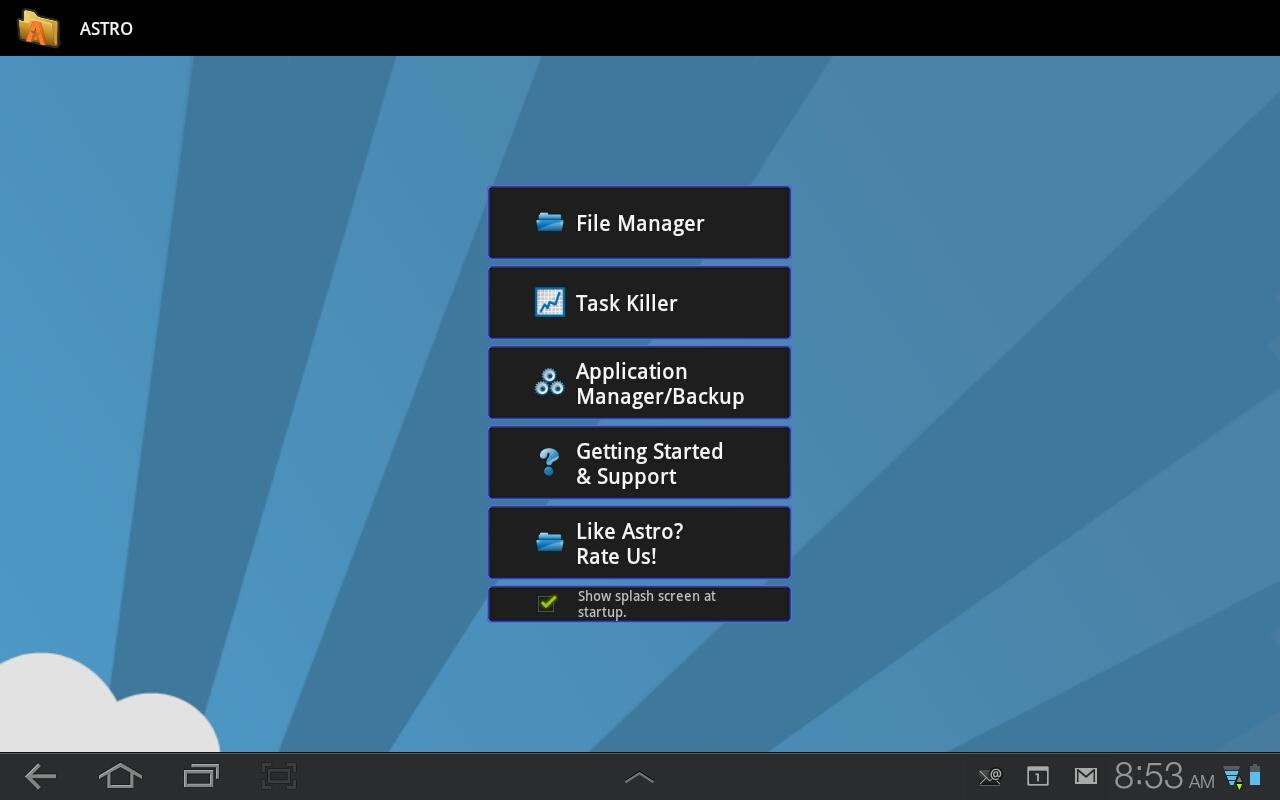
And with Astro File Manager, the answer is yes!  Astro File Manager is free from the Android Market (it is ad supported).  Once you have it downloaded, simply tap the the Astro Icon to launch it.  And you will be greeted with the main screen.  Now tap the button marked 'App Backup' (see pic below).
 Step 1- Tap the 'Application Manager/Backup' button.

Then you will be taken to a screen with a list of all of your installed apps.  On my Acer Iconia a500 it also lists apps that came with the device (I'm using the stock ROM and it's not rooted).  Simply scroll through the list and pick the apps you'd like to have backed up by taping the check box to the right of their list entry.  Or you can select the entire library of apps by tapping the top most check button (it's a Select All).

When you're done, simply tap the blue 'Backup' button at the top of the screen and it will proceed with the backup process.  Once it's complete you can navigate to the backup folder to verify it did infact backup what you wanted.  Last night I backed up 54 apps and there was a folder created with all 54 apps stored inside.  (It actually stores the APK files so you can reinstall them from this backup).

Here is where I bumped into a little trouble.  Everything I seemed to find online referred to the backup folder being automatically stored to the external SD card by default.  On my Acer Iconia a500 this is not the case.  It actually stored the folder on the 'SD storage' partition/directory where pretty much all of the other app data is stored.  Using Astro I navigated to the backup folder and copied it and then navigated to the 'External SD Storage'.  Astro refers to the device's native storage as 'Internal Memory'.  See the picture below.

Copy the 'backup' folder from the 'Internal Memory' folder to 'External SD Card'

Once the copy is finished I went back to the 'Internal Memory' folder and deleted the subfolder named 'apps' in the 'backup' folder to save space on my device.  Restoring apps was extremely easy as well.  Simply select the 'Application Manager/Backup' button from Astro's main screen and select the tab 'Restore Apps'.  And point Astro to the folder where your app backups are stored.

Now that we know how, it will be as simple as installing Astro File Manager on both Android devices (one to backup from the old device and the other to restore from the backup to the new device).  Astro is also a great file manager which can be extended through Market downloads granting things like Bluetooth Access and access to Windows and Samba servers as well.  The free version if ad supported but you can also purchase the Pro version which is ad free.

If you use another backup app be sure to let us know by leaving a comment!

And if you need to get your hands on Astro File Manager, swing by the Android Market at:
Astro File Manager by Metago on the Android Market

Tuesday, November 1, 2011

Is there a Siri for Android? Part 2: Skyvi

0 comments
Skyvi was the second app I tried out during my quest for a 'Siri-like' app for Android devices.  You can read my post below about my hands-on with Iris incase you missed it (click here: my hands-on with Iris).  I have to say I kind of like Skyvi a little better.  The interface is a little more cluttered and not quite as slick looking as Iris.  However, it is very clear from the get-go what you can do with Skyvi.  When you launch the app, the initial screen you are taken to has a series of categories or buttons you can use to explore assorted questions and tasks you can have Skyvi do for you.

In a similar test to my use of Iris, I started off by asking some simple questions pertaining to things like the weather, my location, etc.  And all seemed to work much like Iris.  But where I really started having fun was letting Skyvi post status updates on Facebook and Twitter for me.  After pairing your Facebook and Twitter accounts with Skyvi it is literally as simple as tapping the microphone icon and saying "Update my Facebook Status".

You will get a voice prompt from Skyvi asking what you want your status to say and a voice box will pop up.  Simply tell it what you want and it will automagically send your status update to Facebook (it will read it back to you once it's posted, so be careful what you say first time around).  The Twitter update works the same way.  Out of the four updates I posted through Skyvi only one of them seemed to be misinterpreted.  Pretty much the same rule of thumb applies to Skyvi as with Iris.  Speak somewhat slow and very clear to get the proper results the first time.

You can even have Skyvi read your Facebook and Twitter updates from friends and you can use it to write a comment on a Facebook friend's wall.  Pretty awesome!  Skyvi is free and is a lot of fun to play with.

To check out Skyvi for yourself, swing by the Android Market at: Skyvi for Android

Is there a Siri for Android? Part 1: Iris

0 comments
iris for android
One of Apple's biggest advertised features of their new iPhone 4S is Siri.  If you have been living under a rock and not sure what Siri is, I'll fill you in.  Siri is basically a virtual personal assistant that recognizes your voice.  Basically you queue up Siri and tell it what to do.  It can do web searches for you, answer questions, give you information (like what your weather is), schedule calendar events, set alarms, etc.  In short, it's pretty freakin' cool.  And I'm not a huge iPhone fan; but Siri is pretty sweet.

So naturally I set out to see if the Android Market had anything similar to Siri available (knowing I wouldn't find much).  Right off the bat I was surprised to find two apps that claim some of the features that Siri includes.  Both allow for speech in and speech out controlling.  In short, you can chat with the app and it can physically talk back to you.  Fun and yes, a little creepy.  I'll be splitting both apps into two articles.  This is the first.

The first I tried was 'Iris'.  Iris is still in Alpha Development as of this writing but it is fun to play with.  As far as being a productive tool, I can't quite call it that yet.  But it is a blast to screw around with.  The first few minutes spent with Iris was full of laughs and learning.  You can ask Iris to tell you what your local weather forecast is and it will return in voice results with your local temperature, etc.  If you ask it a question about a movie or song it will return information about the source material in question.

The app is somewhat slick looking with a solid, black background and only a blue orb on the screen.  You simply press the orb and when the speech box pops up on screen fire a question or comment at Iris.  Your searches and results will build a list down the screen keeping track of your discussion with Iris.  Within the first few minutes Iris has correctly returned search results about several songs and television characters.  My next question was asking it for the phone number for a local pizza restaurant, which should have been simple enough via a quick web search.
Iris for Android

Instead Iris informed me that she "wasn't going to give me her phone number..."  Which was hilarious since I have never tried to "pick up" and electronic device before.  I have noticed with Iris that the correct searches are driven from very clear spoken word.  You also have to go slow sometimes for Iris to understand you.  But the fact that this works as well as it does is crazy.  It's almost like having Jarvis (Tony Stark's AI voice from Iron Man) in your pocket. 

But considering the story behind Iris, it is amazing that the app is already this far along in progress.  Simply put the initial app was developed in around 8 hours by the folks at Dexetra.com.  I look forward to seeing how development on this app progresses.

And if you haven't noticed yet, Iris = Siri spelled backwards. Clever!  It also works on both phones and tablets.

Anyways, if you'd like to check out Iris then swing by the Android Market:
Iris (alpha) on Android Market

Click here: to see my hands-on with Skyvi (another Siri-like app for Android)