Showing posts with label windows troubleshooting. Show all posts

Wednesday, September 28, 2011

Windows Help: AVG 2012 Causing Errors?

0 comments
Last night was kind of a rough one.  I sat down at the computer with the intentions on editing a couple videos when I got a pop up from AVG letting me know it was a good idea to upgrade to AVG 2012.  I had some time, so I decided to give it a shot.  The update seemed to be less painful than previous versions.  It seemed to go fast and smooth.  The only issue I bumped into was when it came time for AVG to prompt me to exit my browser so it could continue installation, it never prompted.  Instead, it closed out my browser session without warning or prejudice.  On the up side of things, I wasn't doing anything productive anyways, so no harm done.

After installation all seemed well, at least until I launched my video editing software in Windows XP.  Every time I launched my editing software I would get an error box on the screen that would read: "Encountered Improper Argument".  After uninstalling and reinstalling the software, the error never went away.  After digging around online, I discovered the newly installed AVG 2012 could be the culprit.  And apparently, it was.

According to several forums, different programs could be affected by the 'Identity Protection' module from AVG 2012.  So if you recently upgraded to the newest version of AVG, and have just started getting the "Encountered Improper Arument" error dialogs from certain programs, try this:


1- Launch the AVG User Interface.
Right click the AVG Icon in the System Tray, and choose Open AVG User Interface.
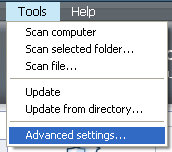


2- Next click on 'Tools' in the menu bar, and go to 'Advanced Settings'.
This will launch the 'Advanced Settings' dialog box and we can disable the Identity Protection Module.


3- In the 'Advanced Setting' screen, you need to locate the 'Identity Protection' header on the left side of the screen, and choose the first option entry underneath it.  In the settings that appear on the right side of the screen locate and uncheck the box marked: 'Activate Indentity Protection' and click 'Apply' and 'Ok'.  Now exit the AVG User Interface.


After deactivating this module, go ahead and check the affected program to see if the error is cleared up.  If so, at least this is a temporary workaround.

I wouldn't recommend leaving it disabled for an extended period of time.  I advise to disable it when needed, and reactivate the option when your finished.

Thursday, April 22, 2010

Windows Fix of The Day: Outlook Distress!

0 comments
I have learned something very valuable of the last several weeks.  I recently bumped into a situation where I needed to support a couple of people's Outlook 2007 email clients.  I have seen a couple pretty crazy problems as of late.  And I will cover a little guidance for those this afternoon. 

The first Outlook oddity: Outlook was extremely slow to open, then the program would stop responding while it was partially open.  This would result in the user seeing the GUI (graphical user interface) for Outlook, but the areas where emails and the email previews were would be blank white boxes.  After attempting to reinstall the program, the problem never changed.  I then found out that by going to 'Start->Run->'and typing 'outlook.exe /safe' the program will launch Outlook's Safe Mode.  There are several 'Safe' switches that you can use when troubleshooting.

  • '/safe'     Simply starts Outlook without any extensions, the reading pane, or toolbar customization.
  • '/safe:1'  Starts Outlook with the Reading pane turned off (Outlook 2003/2007).
  • '/safe:2'  Allows you to start Outlook without checking for mail after startup.
  • '/safe:3'  Disables all extensions.
  • '/safe:4'   Disables customized toolbars (Outcmd.dat and *.fav files)
By using process of elimination I was able to step through these switches (finally stopping on '/safe:3') I was able to find that an extension was halting Outlook from opening properly.  Then by using Outlook's Extension Manager, I was able to narrow down which extension was the problem and disable it.


The second Outlook oddity: on another computer (running Windows Vista), whenever the user would try to run Outlook an error message would pop up reading 'Cannot start Microsoft Office Outlook. Cannot open the Outlook window.'  This was a new one on me.  After speaking with the user they mentioned it worked fine last night, then after downloading an Update from Windows Update today (not sure exactly which update it was) Outlook quite working properly.  She tried a fix she found on a Microsoft Support forum which stepped her through a registry edit (which she tried without success).


I did a little research and found several posts about it on several different forums.  The general consensus was that most people had success with a rather simple fix.  I tried it, and it worked for me.  So I thought I would pass it on.


  • Click 'Start'
  • Click 'Run' (or use the search box in Vista).
  • Type: Outlook.exe /resetnavpane    *Note: Make sure there is a space after Outlook.exe
  • Hit 'Enter' or click 'OK'.  Now try to open Outlook again.
Hopefully, these tips will save someone some trouble and research.  If you have any other fixes, drop a comment below!